The Storybook Guide to ImgTextEditor

Crafting editable documents from static pages, one careful chapter at a time.

Based on the product manuals, this guide walks through how Img Text Editor imports PDFs or images, removes original text with local AI, restores the background, and lets you rewrite the page directly on your Mac.

  • Local processing keeps document data on device.
  • LaMa and CV2 cleanup workflows are both supported.
  • Text stays editable inside the app, without requiring PPTX export.

Main Guide Film

The homepage now foregrounds the guide video itself instead of hiding it as a decorative background.

Chaptered Story

A narrative walkthrough grounded in the manuals.

The structure below is based on UserManual.md and the PDF manual, while the tone and presentation take cues from the storybook guide’s watercolor pages, framed chapters, and workshop metaphors.

Chapter 1

The document arrives at the studio.

Img Text Editor opens both PDFs and image files, including multi-page PDFs and common image formats such as JPEG, PNG, and TIFF. The app extracts text blocks with their content, position, font settings, and color so the page can be edited as a structured layout rather than a flat screenshot.

This matches the manual’s core idea: start from the original page, preserve layout fidelity, and turn static content into an editable working canvas.

An overview of the Document Crafter Studio workflow: Input, AI Forge, Canvas, and Output

Chapter 2

The AI forge rebuilds what the old text covered.

The manual describes two cleanup paths: the LaMa AI model for higher-quality background reconstruction and the CV2 maths model for a lighter-weight workflow. Selective Patch mode decides whether cleanup is applied broadly or only in user-selected text regions.

Manual mask editing and Area Inpaint extend that flow when automatic detection is not enough, especially for precise repairs on small regions or mixed artwork.

Inpainting Magic: Using the Magic Wand and Area Inpaint tools to clear the canvas

Chapter 3

The editor refines every text block in place.

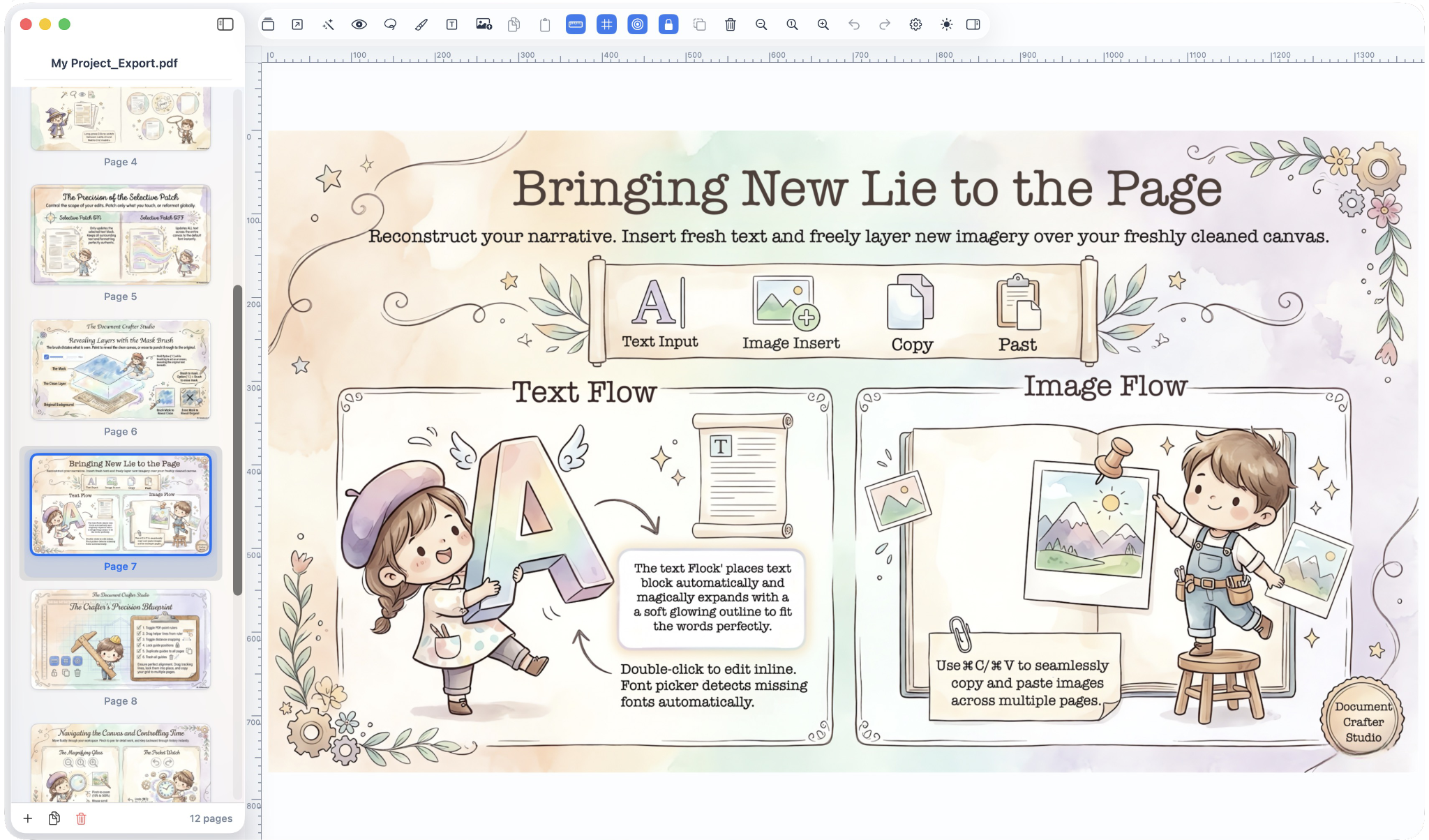
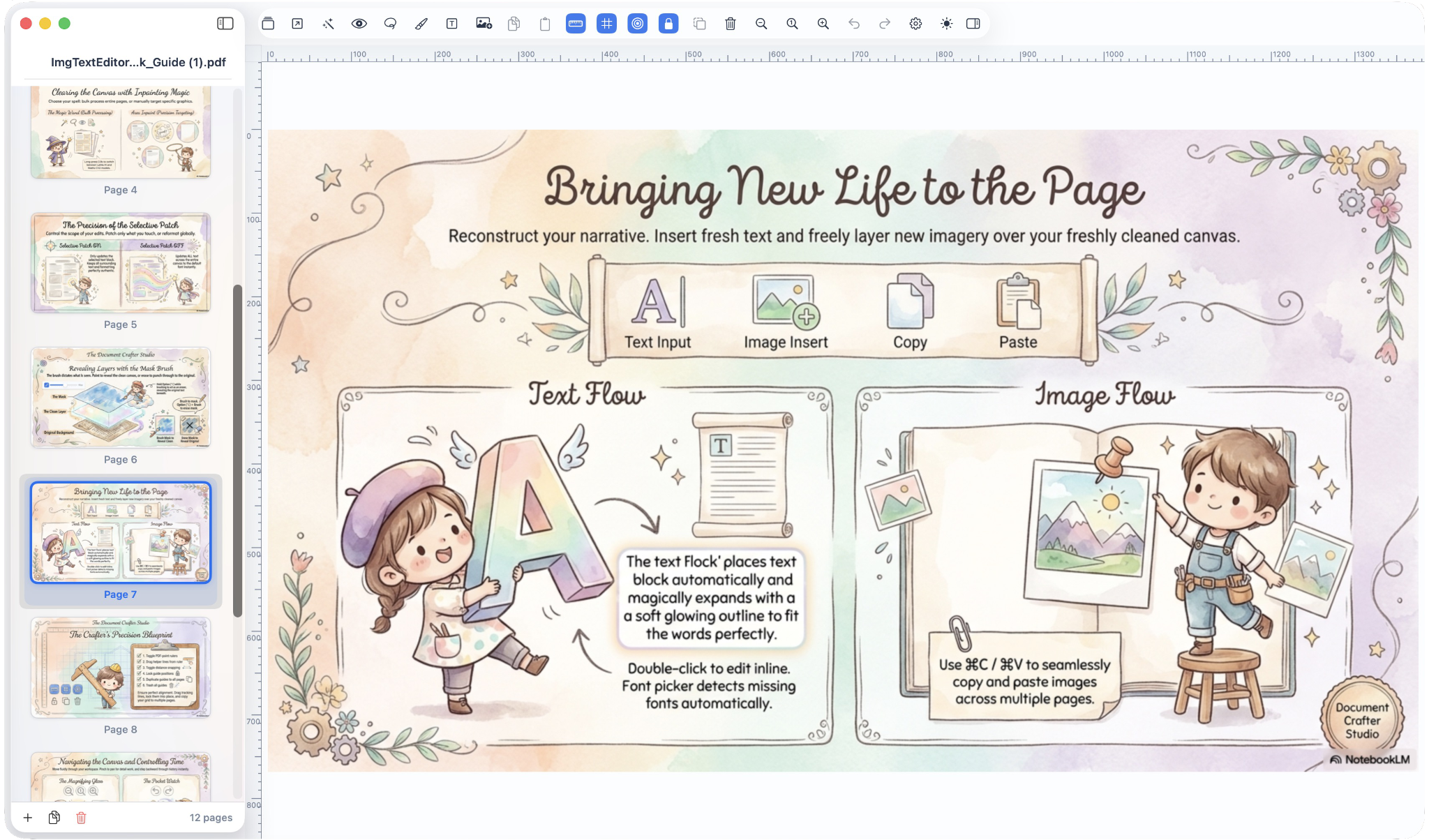
Once text is extracted, the page is not locked into an export step. The manuals make that explicit: blocks remain editable directly inside Img Text Editor. You can change wording, typography, alignment, color, spacing, split merged OCR output, or add brand new text blocks.

Rulers, guides, snapping, and a dedicated properties panel support detailed layout correction for professional document reconstruction.

Mapping the Crafter's Studio: A guide to the toolbar and editing workspace

Chapter 4

The finished page leaves as PDF, image, or PowerPoint.

When the work is ready, export is optional but flexible. The manuals list PDF export, editable PPTX export, and PNG or JPEG image output with multiple resolution levels. Trial and Full version limits are also clear: core editing is available broadly, while higher-end export controls belong to the full product.

The result is a workflow for editing first and exporting only when the final format is required.

A watercolor illustration showing export formats and output options

Quick Facts From The Manual

The essential reference scroll, kept close to the story.

The manuals are clear on the practical constraints: macOS 14 or later, best performance on Apple Silicon, local processing for privacy, and direct in-app editing without needing PowerPoint first.

Platform
macOS 14.0 Sonoma minimum
Recommended hardware
Apple Silicon with 16 GB RAM for larger AI workflows
Privacy
No internet connection is required for document processing
Editing model
Extracted text stays editable directly inside the app
Workspace tools
Rulers, guides, snapping, clean-layer preview, undo, and page management
The essential reference scroll for Img Text Editor: Platform, Compatibility, and Features

Questions And Answers

Advice adapted directly from the PDF tips section.

These answers are derived from the five tips listed in the UserManual PDF and reformatted as a clearer support-friendly Q&A.

How should I handle text on only part of an image?

Artistic guide to Selective Patch and Area Inpaint modes

Use Selective Patch mode. The PDF manual specifically recommends it when only part of the image needs text replacement, because it lets you keep other areas in their original state while updating only the chosen text regions.

How do I check whether Magic Wand cleanup worked well?

Checking cleanup results with the Magic Wand

Use Show Clean Layout to inspect the cleanup result. If some background areas still need work, follow up with Area Inpaint for targeted repairs.

What is the best way to clean a small damaged region?

Using precision tools for small damaged regions

For smaller local problems, the PDF guide points to Area Inpaint. It is better suited to focused repairs than broad page processing.

Can I manually clean original text when automation is not enough?

Using the manual brush and palette tools for cleanup

Yes. The brush tool is meant for that case. You can paint the cleanup mask directly, and use Option while dragging to erase parts of the mask when needed.

Which settings matter most before I run text extraction?

Configuring recognition settings and workspace properties

The PDF tips highlight two setup choices: Recognition Language and Default Font. Setting those correctly improves Magic Wand extraction and fallback text rendering.

Free Versus Paid

The manual’s trial and full-version differences at a glance.

This comparison is based directly on the Trial vs. Full Version table in UserManual.md.

Feature Free / Trial Paid / Full
Open PDF or image Yes Yes
Direct in-app text editing Yes Yes
AI and CV2 text removal Yes Yes
Selective Patch and Area Inpaint Yes Yes
Export as JPEG or PNG Yes, with a 72 DPI cap Yes, up to 300 DPI or Auto
Export resolution and color-depth controls Locked Unlocked
Export as PDF No Yes
Export as PPTX No Yes
Add or duplicate pages No Yes

Ticket Desk

Contact our support team

Submit a support request

We will get back to you via email as soon as possible.